vscode-file-explorer-tools

File Explorer Tools
Recursive folder expand and automatic symbol rename on file rename — power tools for the VS Code Explorer
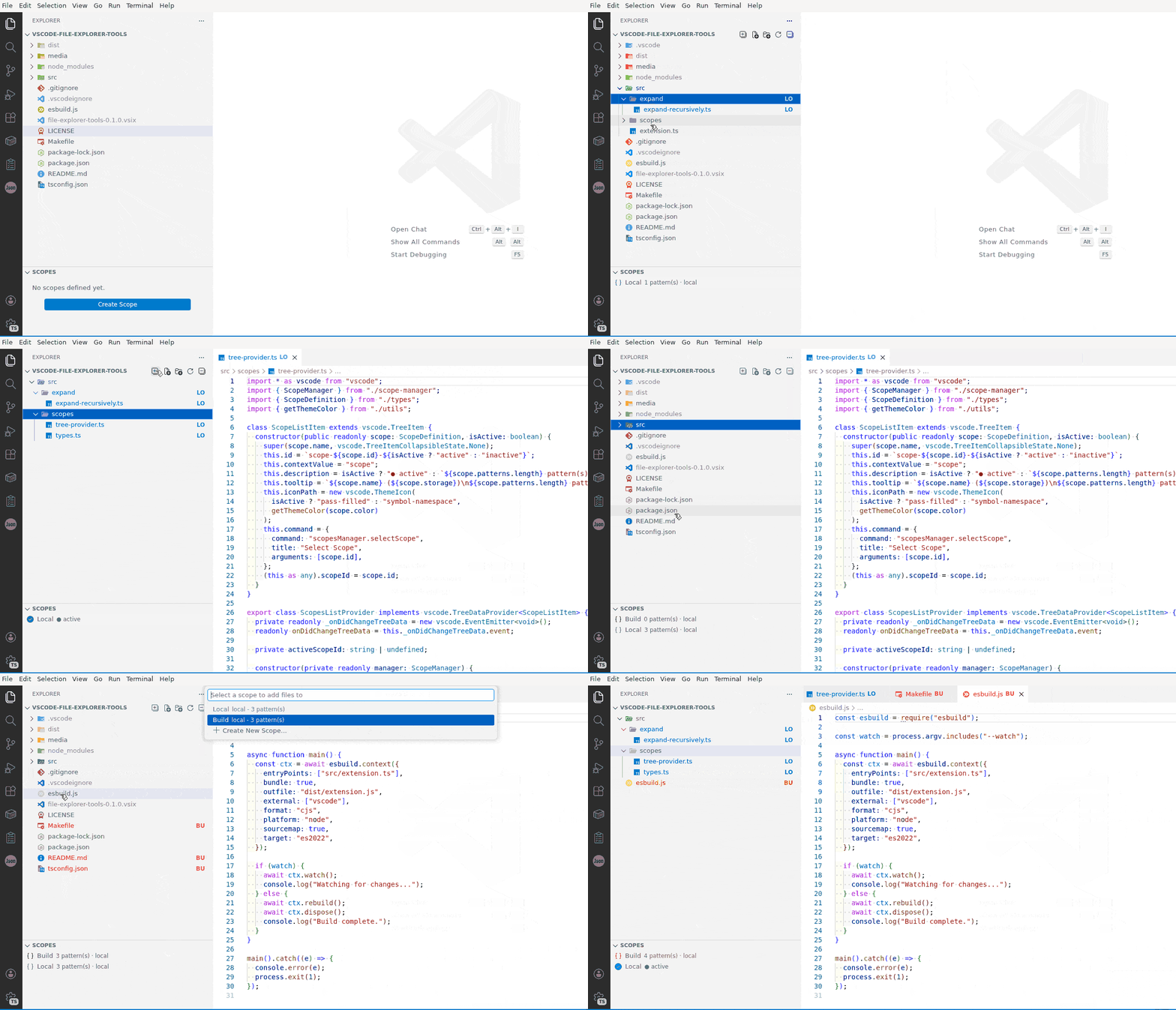
Scopes Manager moved! Scope filtering is now a dedicated extension: Scopes Manager (repo). See Migration below.
Why I Built This
I work on a large monorepo with hundreds of folders and thousands of files. Every day I’d find myself collapsing and expanding the same subtrees, losing track of which files belong to the feature I’m working on, and manually renaming classes after renaming files. Small frictions, but they add up to real time lost.
VS Code’s built-in Explorer is surprisingly barebones for a tool developers live in all day. There’s no recursive expand button, and renaming a file doesn’t touch the symbols inside it. So I built File Explorer Tools — a small, focused set of power-ups for the Explorer panel that I actually needed every day:
- Recursive expand because clicking 30 folders one by one is not a workflow
- Rename cascade because if I rename
user-service.tstoaccount-service.ts, the class inside should follow — and so should every import across the project
Why File Explorer Tools?
- Universal Compatibility: Works with VSCodium, Cursor, Windsurf, and other VS Code forks. Published to the Open VSX Registry for the broadest reach.
- Zero Config: Install and go. No JSON files to create, no settings to tweak.
- Lightweight: No background processes, no file watchers polling your disk, no telemetry. Just two focused features that do their job and get out of the way.
Migrating from Scopes Manager
As of v2.0.0 the Scopes Manager feature was extracted into a dedicated extension. To keep using scopes:
- Install Scopes Manager from Open VSX (or from the GitHub repo).
- Update this extension to v2.0.0+ (or keep v1.x if you prefer the bundled version — but don’t run both, the commands and keybindings overlap).
- Your scopes carry over automatically — the new extension uses the same storage: shared scopes in
.vscode/scopes.json, local scopes in thescopesManager.localScopesworkspace setting. No data migration needed.
Expand Recursively
One-click recursive expansion of all folders in the File Explorer. Appears as an icon in the Explorer title bar.
- Expand entire workspace or a specific folder from the context menu
- Configurable exclude list (skip
node_modules,dist,.git, etc.) - Progress notification with cancel support
Commands
| Name | Description |
|---|---|
File Explorer: Expand Recursively |
Recursively expand all folders in the File Explorer |
Context Menus
- Explorer context menu — Expand Recursively (folders only)
- Explorer title bar — expand-all icon button
Settings
| Name | Description | Default |
|---|---|---|
fileExplorer.expandRecursively.excludePatterns |
Folder names or glob patterns to skip during recursive expansion | .git, .svn, .vs, .vscode, .cache, __pycache__, node_modules, dist, packages, build, target, Release, Debug, bin, obj |
How It Works
Walks the directory tree using the VS Code filesystem API, expanding each folder via revealInExplorer and list.expand. Folders matching the exclude patterns are skipped automatically.
Rename Cascade
When you rename a file in the Explorer, the matching class or export inside it is automatically renamed too (using the language server’s rename provider), cascading the change across the entire project.
- Converts file base names to PascalCase to find the matching symbol (e.g.,
foo-entity→FooEntity) - Handles compound extensions:
foo-bar.component.ts→FooBarComponent - Supports
.ts,.tsx,.js,.jsx,.java,.kt,.cs,.py,.go - Three modes: auto-rename, prompt for confirmation (default), or disabled
Examples
| File rename | Symbol rename |
|---|---|
foo-entity.ts → bar-entity.ts |
FooEntity → BarEntity |
bar-entity.ts → bar-entity.component.ts |
BarEntity → BarEntityComponent |
FooService.java → BarService.java |
FooService → BarService |
Settings
| Name | Description | Default |
|---|---|---|
fileExplorer.renameCascade.mode |
"always" auto-rename, "prompt" ask first, "never" disable entirely |
"prompt" |
How It Works
Listens for onDidRenameFiles events, strips the language extension, derives the old and new PascalCase symbol names from the remaining file name (including compound parts like .component, .module), finds the old symbol in the file content, and invokes vscode.executeDocumentRenameProvider to rename it project-wide.